The whole chain
- Project folderFiles on your own computer
- CommitA named save in the change history
- GitHubPublish the first time, then Push
A commit saves on your computer. A push sends the saved work to GitHub. Saving in the editor or making a commit does not yet put your files online. Ticking boxes on the project site does not move files into your repository either.
This guide covers the basic Git actions without the command line. Unity steps, such as creating the project and making a build, still come from your own project’s weekly instructions.
1 · Do once
Download and install
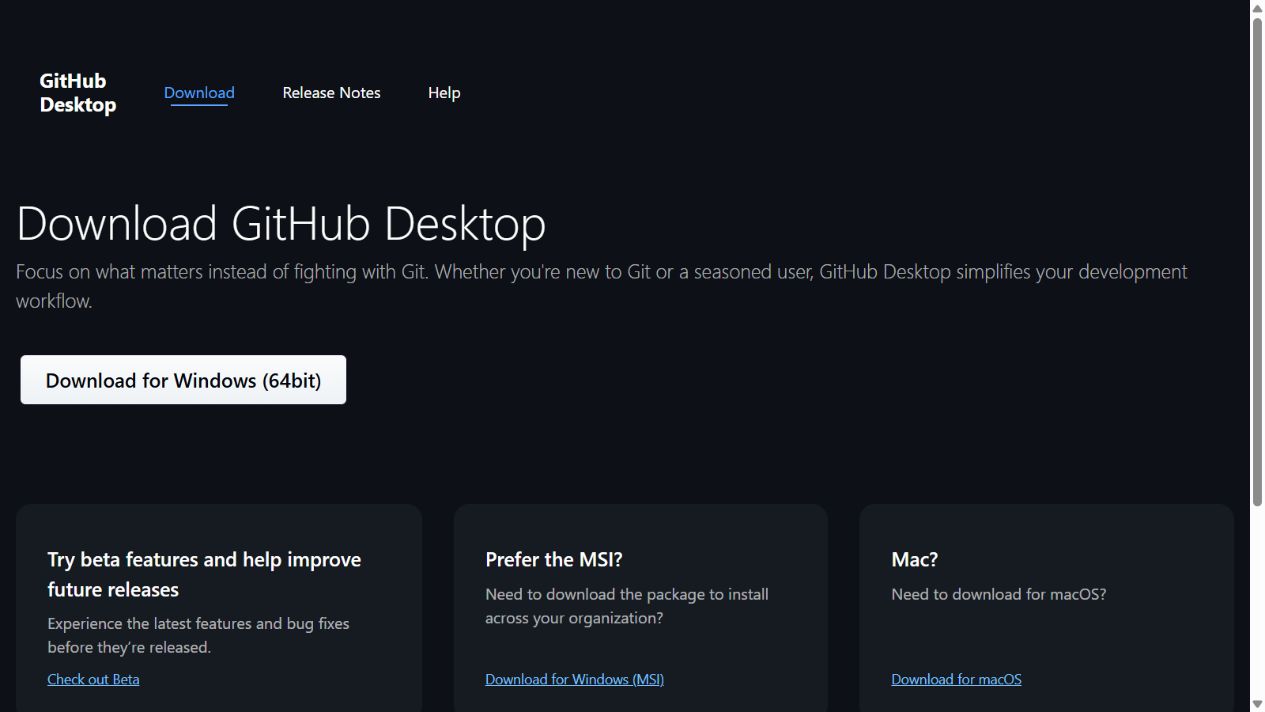
- Open the official GitHub Desktop download page.
- Choose Download for Windows (64bit). You need Windows 10 or newer, 64-bit.
- Open the downloaded GitHubDesktopSetup.exe from your browser’s downloads or from the Downloads folder in File Explorer. The app opens after the installation.
More detail: GitHub Docs — installing.
On a school computer: if installing is blocked, ask your instructor to install it or for the school’s software centre instructions.
2 · Do once
Sign in and check your author details
- You need your own GitHub account. Agree on your author name and whether the project is public with your instructor, as your project’s instructions say.
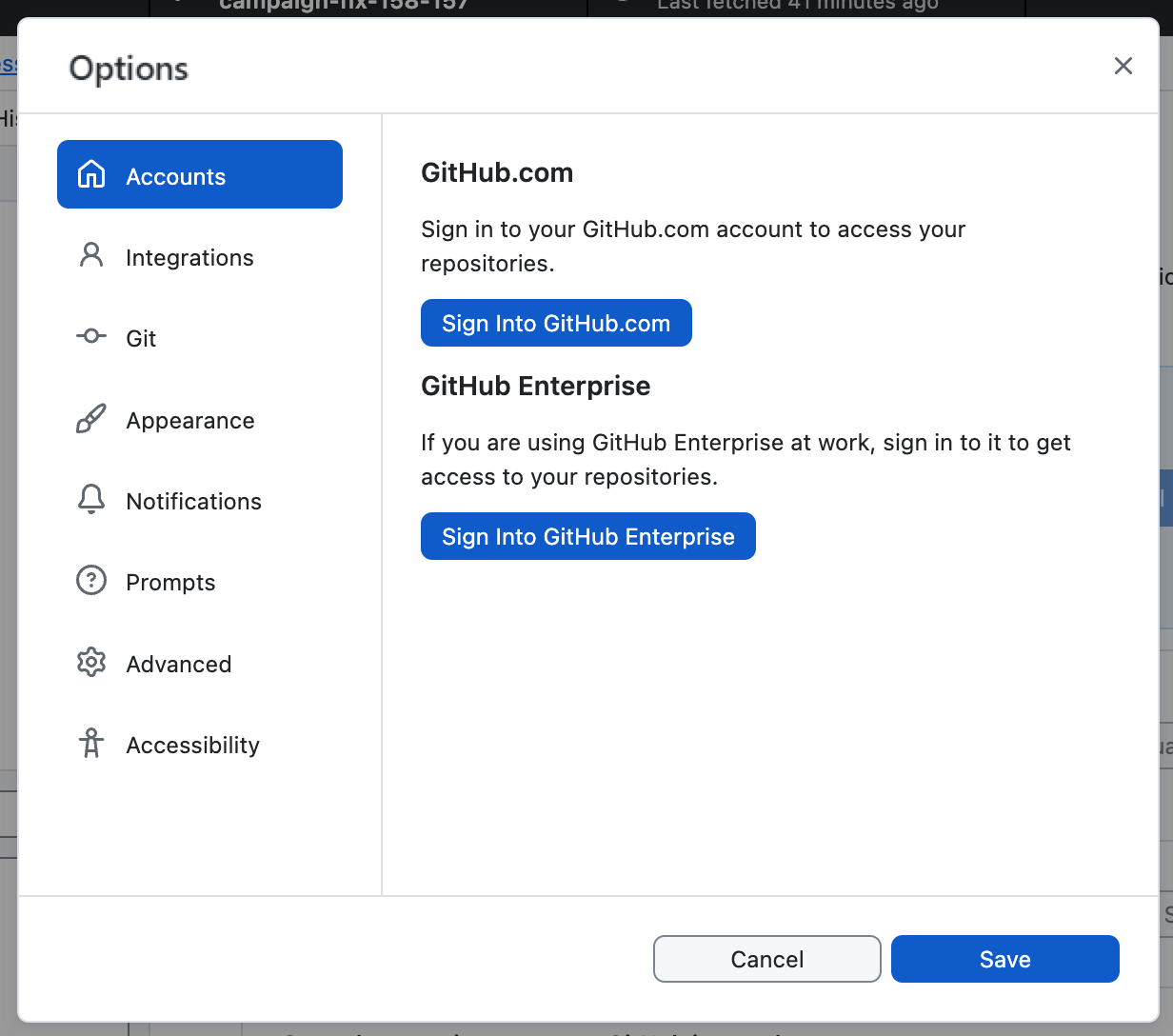
- On the start screen, choose Sign in to GitHub.com. If the app is already open, the same action is under File → Options → Accounts.
- Choose Continue with browser, sign in in the browser and allow GitHub Desktop to connect to your account. Go back to the app the way the browser suggests.
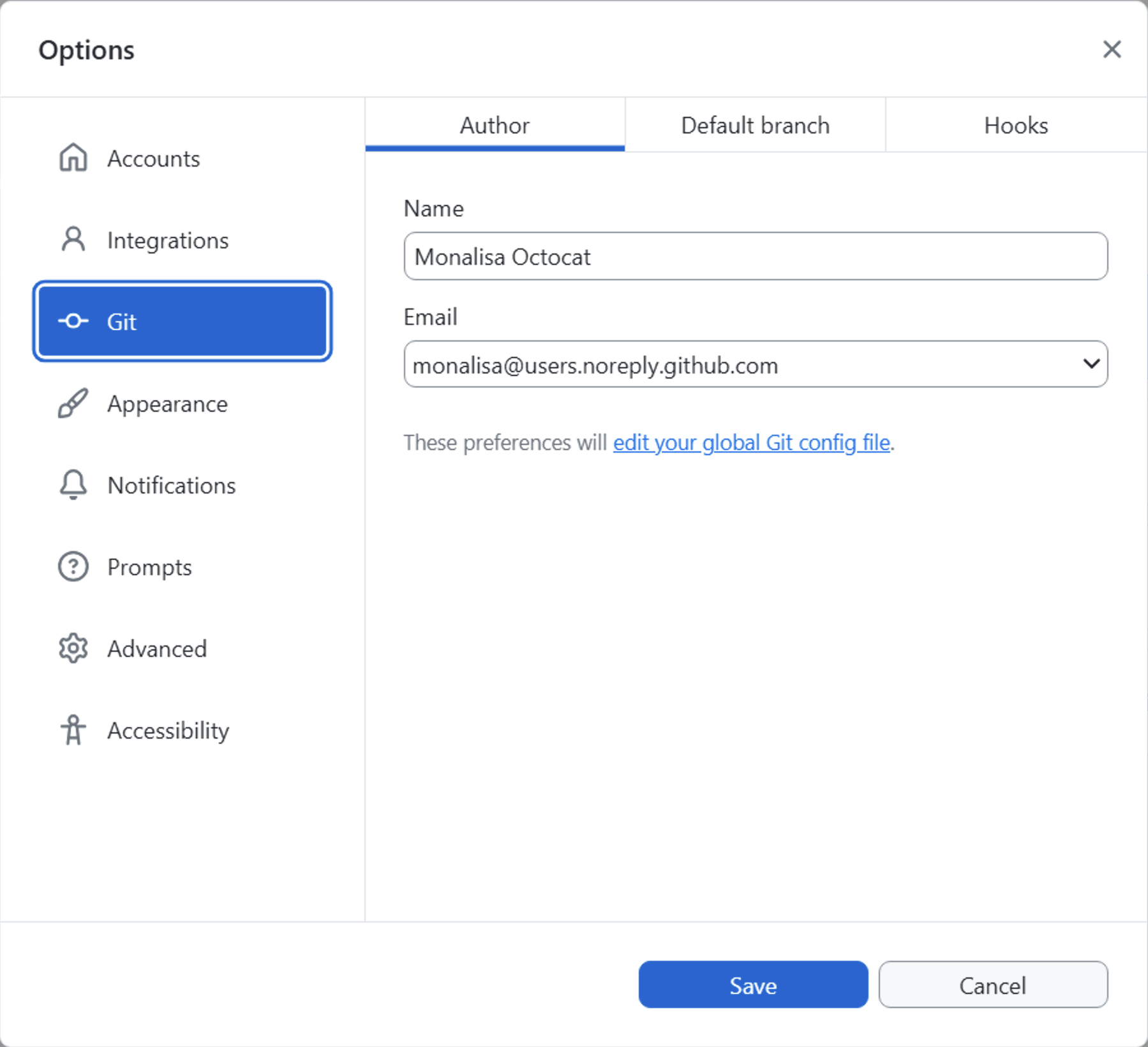
- Open File → Options → Git. Check Name and Email. Use the agreed author name and your account’s noreply address, so that your personal email does not show in public commits. Choose Save.
Sources: signing in and author settings.
Version as evidence: you find the GitHub Desktop version under Help → About GitHub Desktop. Desktop has its own built-in Git, so a separate git --version may not work on the command line after installing only Desktop. On this Desktop route, write down the Desktop version number and where you found it in your tool table or journal.
3 · Choose one route
Where is your project now?
- A · No project folder yetCreate a new local repository.
- B · The files are already on your computerPut the existing folder under version control.
- C · Your repo is already on GitHubClone it. Do not create a second repository.
Your own work repository is not the same as the project’s instruction site. Use the address of your own repository; the repository of these learning materials is not where you hand in your work.
A · Create a new local repository
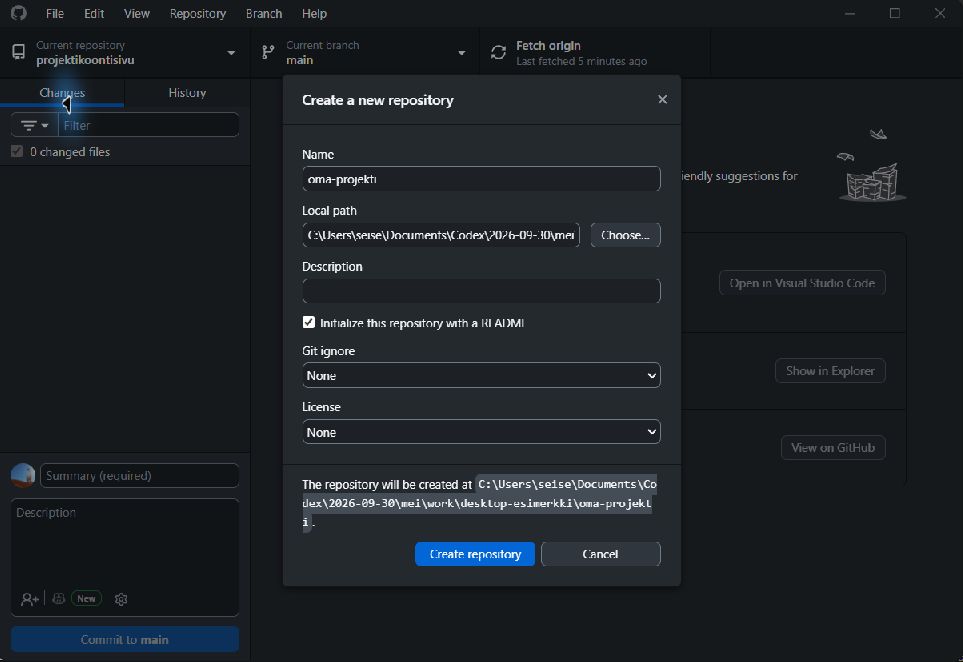
- Choose File → New repository.
- Type your project’s name in the Name field, for example
my-project. - Choose the Local path: the folder under which the project folder is created. Desktop adds the Name to it. Check the final path at the bottom of the window.
- Choose Initialize this repository with a README. You can leave Git ignore and License at None and add your project’s own
.gitignorenext. The licence is agreed with your instructor. - Choose Create repository. The folder is now on your computer. The README creates the first save, Initial commit. Go on to adding your files.
Source: GitHub Docs — your first repository.
B · Add an existing project folder
- Choose File → Add local repository → Choose.
- Choose the project’s root folder: the one with your README, your project folders and project-docs. In a Unity project it is the folder that contains Assets, Packages and ProjectSettings. Do not choose only a subfolder.
- Choose Add repository. If the folder already has Git version control, it is added to Desktop.
- If you see the message This directory does not appear to be a Git repository, choose the create a repository link in the message. Check that the final path is exactly your current project folder. If you already have a README, leave its checkbox empty. Choose Create repository.
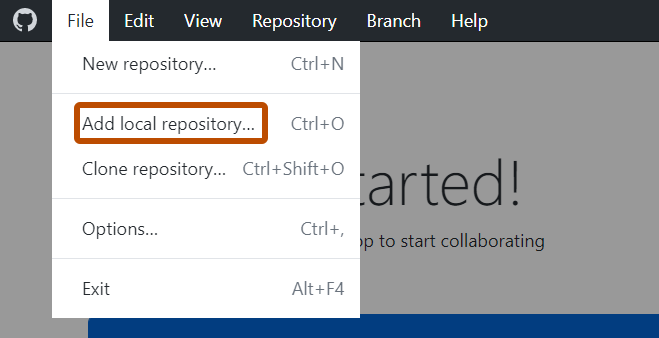
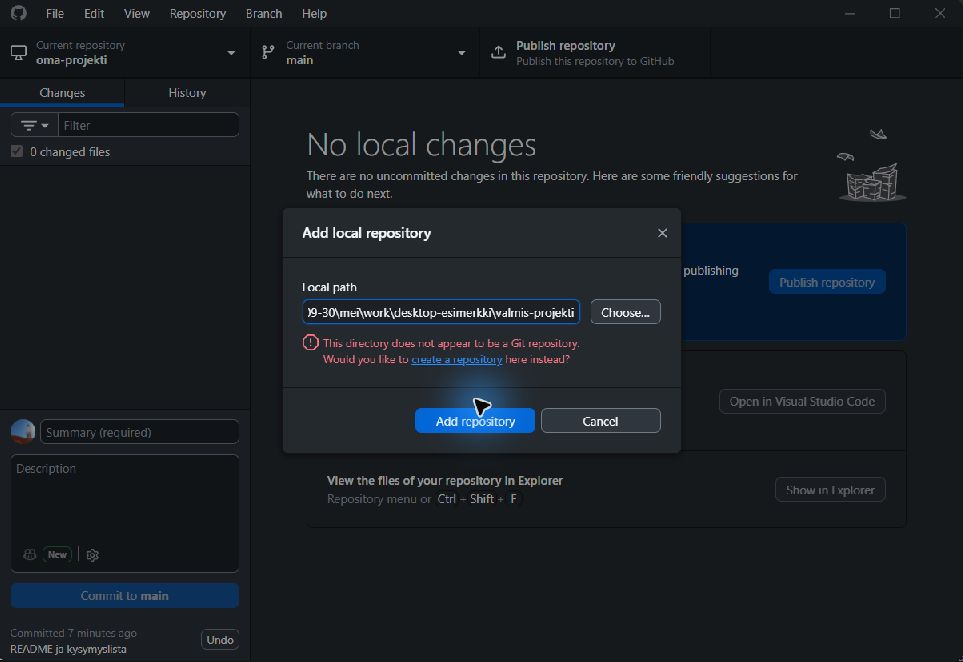
You do not need to move your existing files. Go on to checking them and making a commit.
More: adding a local repository.
C · Clone your own existing GitHub repository
- Copy the address of your own repository from the browser.
- Choose File → Clone repository → URL. Paste the address in the Repository URL field.
- Choose the Local path: a new, separate folder. Choose Clone.
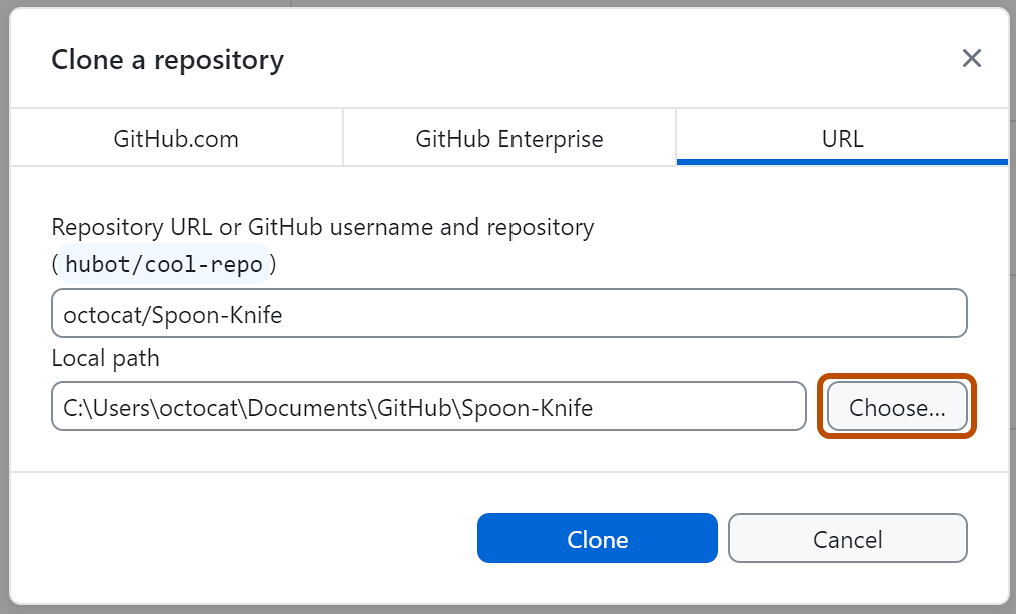
Cloning also brings the history and the connection to GitHub. You do not publish it again with Publish repository. You also use this route when your project asks you to test the setup from another folder or on another computer.
Source: GitHub Docs — cloning.
4 · Before every commit
Put the files in the right folder
- Check Current repository in the top left corner of Desktop: your own project is selected.
- Open Repository → Show in Explorer. You see exactly the folder that Desktop follows.
- Save your work in this folder. Copy documents and screenshots you wrote earlier into its project-docs subfolder: select the files in File Explorer, press Ctrl+C, open project-docs and press Ctrl+V. Do not drag files into the Desktop window.
- Add a
.gitignoreto the root folder before the commit. Use the content your project needs. Check the file name: it must be.gitignore, not.gitignore.txt.
my-project/
├─ client/       the app’s user interface
├─ server/       the server code
├─ project-docs/
│  └─ questions.md
├─ README.md
└─ .gitignoremy-project/
├─ Assets/ scenes, scripts and art
├─ Packages/ Unity’s package list
├─ ProjectSettings/ project settings
├─ project-docs/
│ └─ gdd.md
├─ README.md
└─ .gitignore Unity template: Library, Temp and builds stay outGit does not save empty folders. If a folder must show in the first commit, add a suitable README or an empty .gitkeep file to it. Once the real project files are in the folder, they keep it in.
.gitignore example for these projects
A shared starting point. Add to it from your own project’s instructions. .env.example may only contain empty or made-up example values.
node_modules/
.env
.env.*
!.env.example
*.db
*.db-shm
*.db-wal
__pycache__/
.venv/
venv/
client/dist/
frontend/dist/
vendor/
.gitignore for a Unity project
Use GitHub’s ready-made Unity template before your first commit. Open Unity.gitignore, choose Download raw file and save the file in the root folder with the name .gitignore. If you create the repository on GitHub (route C), you can instead choose Add .gitignore → Unity there. The most important lines of the template are these:
/[Ll]ibrary/
/[Tt]emp/
/[Oo]bj/
/[Bb]uild/
/[Bb]uilds/
/[Ll]ogs/
/[Uu]ser[Ss]ettings/
*.csproj
*.sln
Unity creates the Library and Temp folders again by itself. Test builds do not belong in version control.
Check the selected files: your own code, the README and your evidence of work go in. Passwords, keys, real users’ data and installed dependency folders stay out. If a secret already got into a commit, .gitignore does not remove it from the history: ask your instructor for help before sending.
5 · A named save on your computer
Make a commit
- Open the Changes tab in Desktop. Your saved changes are listed there.
- Open the files in the list and check the changes. Tick the files that belong to this save. The first time, at least the README, .gitignore and your project files are included.
- Write in the Summary field what you changed, for example Unity project and README. Later a good message is, for example, Fix shell bounce angle #12. Description is an optional extra explanation.
- Choose Commit … files to main (the branch on the button may be another one). The save shows on the History tab.
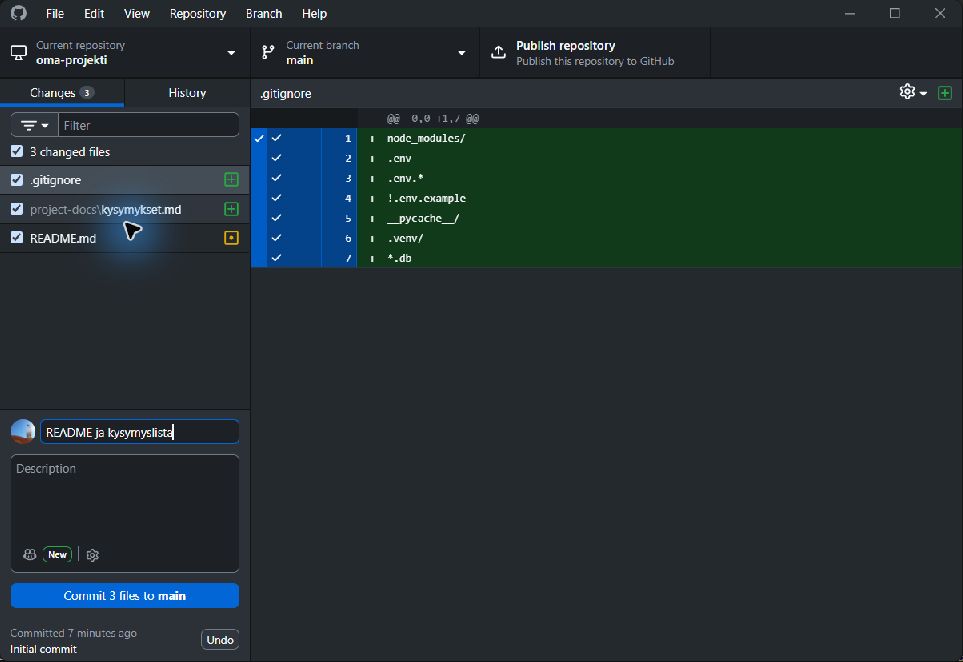
Go on to sending. An empty Changes list means that the selected changes have been committed. It does not tell you whether they are on GitHub.
6 · Only the first send of a new repo
Publish the repository to GitHub
If the repo is new and only on your computer, the top bar shows Publish repository. If you cloned your own GitHub repo, go straight to Push origin.
- Go through your project’s privacy check with your instructor before publishing. Also check the author details of your commits and the content of your files.
- Choose Publish repository. Check the name and that the repo goes to your own account.
- Keep this code private means a private repository. Keep the tick until public or private is agreed. Remove it only if you have agreed on a public repo with your instructor. If your project’s done-when condition needs a public repo, sort it out with your instructor before you tick the task as done.
- Choose Publish repository in the window. This creates the GitHub repo and sends your local commits there.
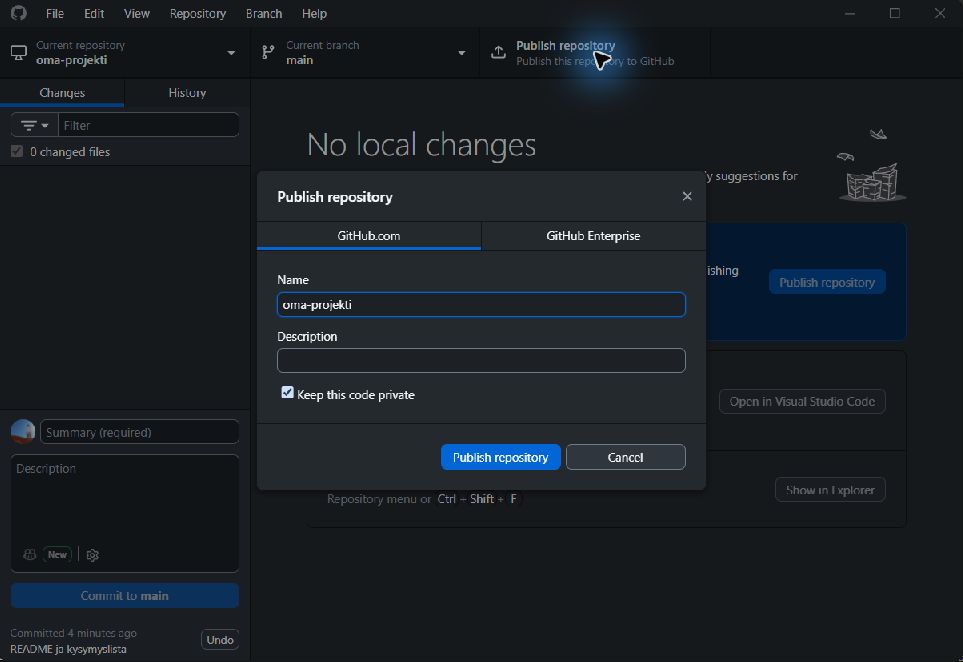
Publishing the repository saves the code on GitHub. Publishing the game itself online is a separate, later work step in your project.
7 · Repeat after every change
Send your changes and check on GitHub
- Save your files and make a commit.
- Choose Push origin in the top bar. Wait until sending is finished. If the button says Fetch origin and there are no commits to send, still do the next step.
- Open Repository → View on GitHub. Check in the browser that the right repository and branch are open, your newest commit shows, and for example your README contains the text you just wrote.
- Write your repo address and the commit ID in the week’s journal. Add your instructor as a collaborator if your project asks for it; see GitHub’s guide to collaborators.

Daily routine: right repo → saved files → check Changes → clear commit message → Push origin → check on GitHub.
If you work on several computers or together with others, choose Fetch origin at the start of your work and, if needed, Pull origin. Pull brings the changes others have sent to your computer. If there is a conflict, ask your instructor for help before you go on.
Source: GitHub Docs — Push.
If something does not work
- A file does not show in the Changes list
- Save it in the editor. Check Current repository and Show in Explorer: is the file inside exactly this folder? Also check .gitignore. If the file has not changed since the last commit, it should not show in the Changes list.
- The Commit button does not work
- Write a Summary and select at least one changed file. If there are no changes, you do not need a new commit.
- The commit shows in History, but the file is not on GitHub
- Choose Publish repository for a new local repo or Push origin for a repo you already published. Check in the browser that you have the right repository and the same branch open.
- Desktop says the repository already exists
- Check on GitHub whether your project repo already exists. Clone the existing repo on route C. If the changes in your current folder must be combined with it, ask your instructor for help; do not delete files or history.
- Sending asks you to fetch changes first
- Choose Fetch origin and Pull origin. Check the changes. If there is a conflict, ask your instructor; do not try to force the send.
- GitHub rejects a large file
- GitHub blocks files over 100 MiB in a normal Git push. Do not add node_modules, Unity’s Library folder, installers or large videos to your repo. If such a file already got into a commit, ask your instructor for help before you try sending again.
End-of-first-week check
- Your own repository opens on GitHub, and public or private is as agreed with your instructor.
- The README, .gitignore, your question list and the work done so far are included.
- Your own content commit shows in the history; the automatic Initial commit alone does not cover the files you added later.
- Secrets and dependency folders stay out.
- The repository address and the commit ID are in your journal.
Go back to your project’s weekly instructions and do its other done-when checks.
Back to the project overview